A family searches Google Maps for somewhere to eat in Kolkata before leaving home. Your restaurant looks promising, but the menu photo is hard to read and the booking link opens a page for another branch. They still need to check prices, kitchen timings and whether a table is available. Each unanswered question makes planning dinner more work.
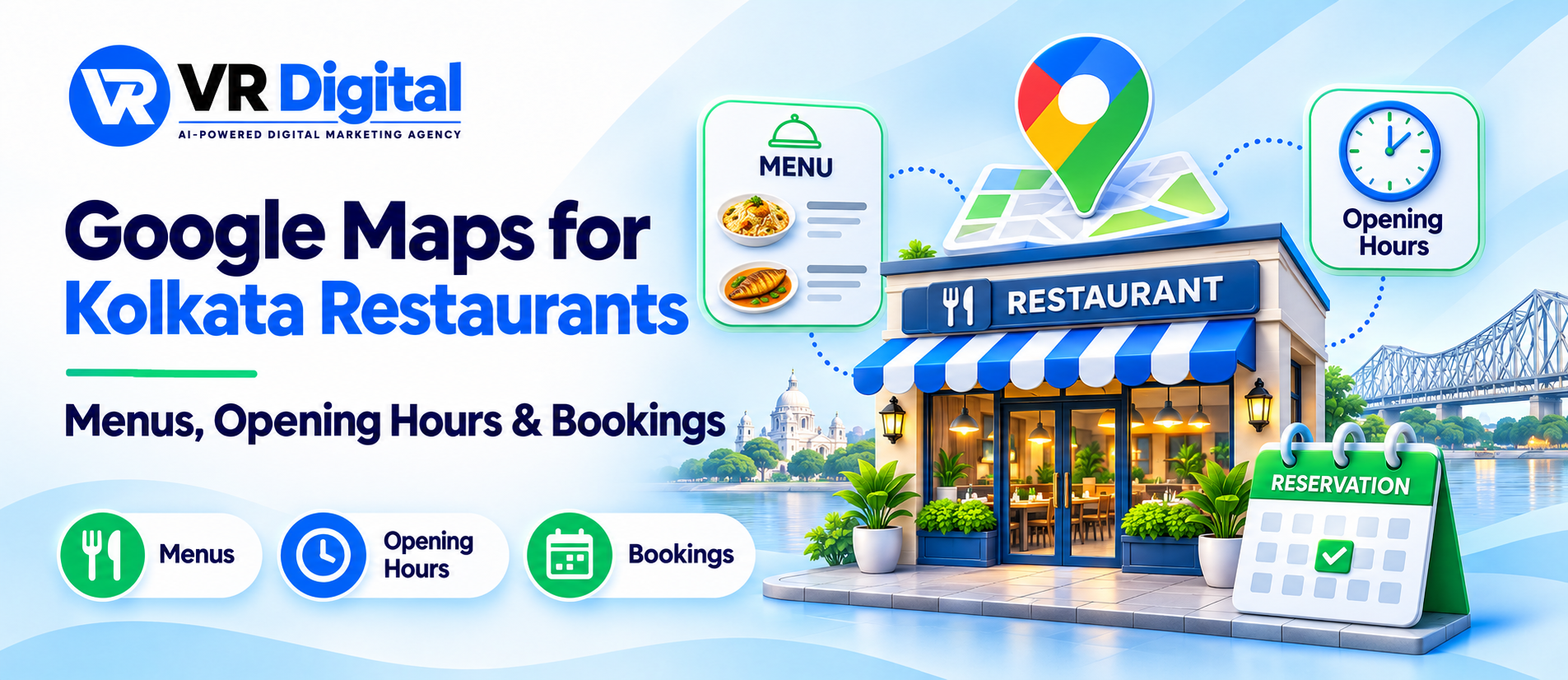
Google Maps marketing for restaurants in Kolkata begins with helping diners make that decision. Your profile, menu and reservation page should tell the same story about the food, location and next step. This guide explains what to check with your floor team and how to measure enquiries that turn into visits.
Check the listing as a diner would
Open the public restaurant profile on a phone. Check the address, entrance pin, telephone number and opening hours. Follow the directions far enough to see whether the pin identifies the entrance diners use. A restaurant inside a building may need a clear entrance photograph and floor details on its website location page.
Ask the team which questions callers repeat. They may ask whether lunch is served after a certain time, whether a branch has a particular dish or how to arrange a larger table. Put the confirmed answers where diners look before calling. Assign someone to check the public listing after each change. Explore local SEO services for Kolkata restaurants.
Make the current menu easy to find and read
Use a menu page that works on mobile and clearly identifies the branch. Organise dishes into sensible sections and keep descriptions short enough to scan. Include current prices and explain applicable charges clearly. Check the details with the restaurant manager before publishing, especially where dine-in, takeaway or special menus differ.
A fictional restaurant might offer a weekday lunch menu alongside its regular menu. Label the dates and serving times so diners know when it applies. If dishes change frequently, explain how customers can confirm availability. Use food photographs that represent what the restaurant serves and keep older promotional menus from becoming the easiest version to find.
Google documents how to manage the menu link and menu information on a Business Profile. Check the public result after updating it so the preferred source shows the intended menu. Read Google’s menu editor guidance.
Connect the reservation link to the correct branch
Tap the booking link from Maps and complete a test reservation request. The destination should identify the restaurant and location before asking for a date or phone number. If the team confirms tables manually, explain that the submission is a request and describe how confirmation arrives. If a slot is confirmed immediately, check that the message includes the date, party size and branch.
Google provides options for managing action links such as reservations. Review the links visible on the public profile and check where each one takes diners. Make sure staff recognise requests from every active provider so bookings arrive in a place someone actually monitors. Read Google’s guide to local business links.
For a website booking journey, test the form on a smaller screen and check that visitors can correct a field without losing their other answers. Explore website development support for Kolkata businesses.
Review your menu and reservation journey together. Share the public listing, menu page and booking destination you want checked. Request a free website audit.
Explain hours and special arrangements clearly
Keep general opening hours current, then explain service details that affect a visit. A restaurant could stay open between lunch and dinner while the full kitchen menu is available only at certain times. Put those details on the menu or restaurant page and give staff the same wording for phone enquiries.
Check holiday hours and special events before promoting them. If reservations need a deposit or have cancellation conditions, show those terms before the customer commits. For larger groups, explain who handles the enquiry and what details the team needs to respond. Test the route for someone trying to book while the restaurant is closed.
Use photographs and replies to answer real questions
Choose current photographs that help diners recognise the restaurant and understand the setting. Show the entrance, dining area and representative dishes. Avoid publishing identifiable guests without appropriate permission. Ask the floor team whether the images give a fair impression of seating and the experience diners can expect.
Review feedback for practical gaps. Repeated questions about the entrance could justify a clearer photograph. Comments about confusing hours could prompt a check of the profile and website. Reply helpfully and take personal booking details into an appropriate private channel. Read VR Digital’s guide to answering customer questions in content.
Before a busy weekend, give one staff member a simple test scenario. Ask them to find the menu, choose a suitable dining time and send a request for a small group. Check the record that arrives with reception and compare it with the customer’s confirmation. This makes missing branch details or unclear next steps easier to identify.
Measure enquiries alongside confirmed visits
Keep menu views, direction taps, calls, reservation requests and confirmed bookings as separate measures. A direction tap can show interest, while a reservation record can confirm a booking. Ask staff to note where enquiries came from when customers volunteer the information. Use consistent definitions so weekly reports compare the same actions.
Review a sample of incomplete enquiries with the team. A missed call during a busy service needs a different response from a booking form that fails on mobile. When people request unavailable slots, check whether the page explains alternatives. Record the change you make and review the next comparable period with the manager.
Make planning a visit easier for your diners. Bring your menu, opening hours and recent booking questions to a discussion. Contact VR Digital about your restaurant’s local presence.